Hello friends, I’m your very own TechWaleJha! These days, AI-generated videos are a huge trend on Instagram, Facebook, and YouTube. You’ve probably seen plenty of Reels featuring 3D characters, hyper-realistic cars, or cinematic environments. But when you type text into an AI video tool like Luma Dream Machine or Kling AI yourself, the result comes out very boring and static. Why does this happen to you? Because your prompt isn’t powerful enough.
This is where Google’s Gemini AI comes in. If you’re looking for a free Gemini video prompt generator, you don’t need any paid tools. You can directly use Google Gemini to convert your video ideas into a structured, professional prompt. A perfect AI Gemini video prompt can easily turn your regular text into a Hollywood-level scene.
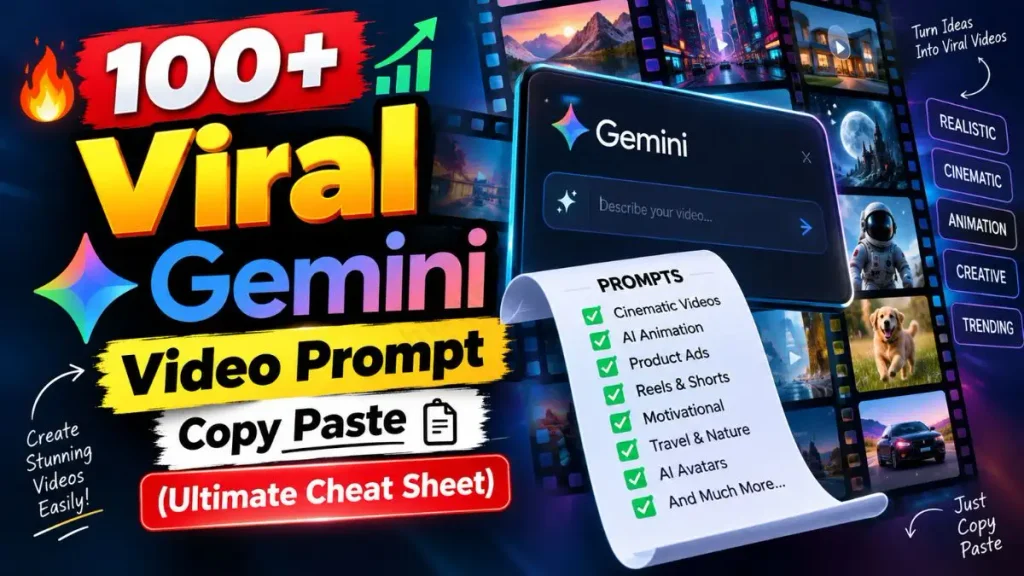
In this article, we’ll learn how you can have Gemini write such prompts for you, and I’ll also give you over 100 Gemini video prompt copy paste commands that you can use directly to generate videos.
How to Write an AI Gemini Video Prompt (Step-by-Step)
To create a viral reel, it’s not enough to have just a good idea; the biggest task is explaining that idea to the AI tool. This is technically called “Prompt Engineering.” If you want to deeply understand this skill, you can read the Prompt Engineering guide on Wikipedia.
Let’s see how a professional Google Gemini video prompt is written step-by-step:
Step 1-3: Subject & Environment Setup
Video generation tools love detail. That’s why you should always break any prompt into three basic parts so your Gemini video prompt ideas can execute properly:
- Step 1 (Subject): First, state who the main character is and what they are doing. Example: A stylish cyber-ninja running…
- Step 2 (Environment): Now, set the background. What is the setting like? Example: …in a neon-lit futuristic Tokyo street…
- Step 3 (Lighting & Quality): Add rendering details to make the visuals look 4K and realistic. Example: …cinematic lighting, volumetric fog, photorealistic, 8k resolution.
If you just write this and generate, the video will be good, but the camera will stay in one place. The final step is the most important for getting a real cinematic feel.
Step 4: Add Camera Motion (The Secret Trick)
Always add a camera motion command right at the very end of your visual prompt, because it helps direct the virtual camera.
Perfect Gemini Video Prompt Example:
“A stylish cyber-ninja running in a neon-lit futuristic Tokyo street, cinematic lighting, volumetric fog, photorealistic, /drone follow, /speed ramp”
In this Gemini video prompt example, we added /drone follow and /speed ramp at the end. This tells the AI that the camera should fly behind the ninja and ramp the speed from slow to fast. If you’re tired of typing it over and over, don’t worry. I’m going to give you a complete Gemini video prompt copy paste list where you only need to change your subject.
Also Check This Viral Prompt: How to Create a Realistic AI Bullet-Time Video Effect in 2026
100 Gemini Video Prompt Copy Paste Commands
Friends, as I promised, here I’ve provided the master list of the 100 most powerful camera and motion commands for you. You can add these commands as Gemini video prompt generator instructions in your text. Whether you’re using Luma, Kling, or Runway directly, or having Google Gemini write prompts for you, these keywords always work to generate a beautiful and attractive video.
Now you just need to pick your favorite command from here and paste it at the end of your prompt. Let’s check out this ultimate Gemini video prompt copy paste cheat sheet:
1. Basic Camera Movements & Angles
If you want to keep your main character in focus, use these basic camera motions.
| Motion Type | Gemini Video Prompt Copy Paste Commands |
| Panning (Left/Right) | /pan left, /pan right, /whip pan, /fast pan |
| Tilting (Up/Down) | /tilt up, /tilt down, /pedestal up, /pedestal down |
| Zoom & Dolly | /zoom in, /zoom out, /dolly in, /dolly out, /push in |
| Angles & Tracking | /low angle, /high angle, /tracking shot, /point of view (POV) |
| Stability | /steadycam, /handheld, /shaky cam, /slider shot |
2. Aerial & Drone Shots
To stand out from the crowd on Instagram, you need to show a large scale. These commands add a drone-like height to your scene.
| Drone Motion | Gemini Video Prompt Copy Paste Commands |
| Basic Flight | /drone fly forward, /drone fly backward, /drone ascend |
| Cinematic Drone | /drone orbit, /drone reveal, /drone follow, /drone tracking |
| Action & Speed | /fpv drone flying, /drone hyperlapse, /high angle drop, /crash zoom |
| Viewpoint | /bird eye view, /top down shot, /helicopter shot, /earth zoom in |
3. Time, Speed & Transitions
Want to turn any normal-looking video into a Hollywood-style action scene? Then be sure to include the time and speed commands in your Gemini video prompt.
| Effect Type | Gemini Video Prompt Copy Paste Commands |
| Slow Motion | /slow motion, /super slow mo, /bullet time, /freeze frame |
| Fast Motion | /speed ramp, /timelapse, /hyperlapse, /time warp |
| Transitions | /fade to black, /wipe transition, /morph transition, /glitch transition |
| Looping / Time Shift | /seamless loop, /reverse time, /day to night, /season change |
4. Lens, Focus & VFX
The detail and lighting of your visuals set the mood of your video. With these commands, you can instruct your AI tool like a professional cinematographer.
| Lens & VFX | Gemini Video Prompt Copy Paste Commands |
| Focus & Blur | /depth of field, /bokeh blur, /rack focus, /macro to wide |
| Wide & Distortion | /extreme wide shot, /ultra wide angle, /fisheye lens, /dutch angle |
| Lighting & Sci-Fi | /cinematic lighting, /neon glow, /vfx explosion, /hologram effect |
Viral Gemini Video Prompts for Instagram Reels
Friends, there’s absolutely no need to manually rack your brain anymore. Certain aesthetics always trend on Instagram, like dark, moody vibes, glowing neon outfits, and cinematic romantic scenes. If you’re a new creator, you can simply use these ready-made templates to make your video cool too.
Prompts for Boys, Girls & Couples
I’ve created the 3 most in-demand templates. Just copy them and paste them into your AI video generator. These Gemini video prompt copy paste trends directly target the Instagram trend.
1. Gemini Video Prompt for Boys (Dark & Cyberpunk Aesthetic)
“A handsome boy wearing a black tech-wear hoodie walking through a cyberpunk city street at night, neon glowing lights reflecting on wet roads, heavy rain, photorealistic, 8k resolution, highly detailed, cinematic lighting, /dolly in, /slow motion”
2. Gemini Video Prompt for Girls (Magical & Sci-Fi Aesthetic)
“A beautiful girl in a glowing bioluminescent sci-fi dress standing on a cliff edge looking at a futuristic galaxy sky, glowing neon butterflies flying around her, 8k resolution, highly detailed, photorealistic, /drone orbit, /bokeh blur”
3. Gemini Video Prompt for Couple (Romantic & Cinematic)
“A romantic couple holding hands walking on a glowing bioluminescent beach at night, a massive glowing moon and starlight in the sky, highly detailed, photorealistic, cinematic lighting, /tracking shot, /speed ramp”
In the prompts, the lighting, subject, and motion (like /drone orbit or /slow motion) are all perfectly balanced. You can customize the clothing color or background a bit to suit your taste, then generate the video and upload it.
Frequently Asked Questions (FAQs)
Can I generate a Gemini AI video prompt for free?
Yes, you can generate it completely free. Google’s basic Gemini chatbot is completely free. You can go there and use it as a free Gemini video prompt generator. Just tell it what kind of video you want, and it will write a detailed prompt for you that you can copy-paste into any free AI video tool to generate the video.
Can I get a download link for these 100 Gemini video prompt commands?
Currently, there’s no need to download a separate app or PDF. You can bookmark this webpage in your browser by pressing Ctrl+D, or you can directly select the tables above and copy-paste them into your phone’s Notepad to save them, so you can use these commands offline as well.
Why do faces or hands look strange (distorted) when an AI video is generated?
This is a very common problem called ‘AI Artifacts’. When you put too many contradictory (opposite) commands in a single Gemini video prompt (like /fast pan and /slow motion at the same time), the AI gets confused. That’s why you should always keep your prompt simple and use only 1 or 2 motion commands per scene so the AI doesn’t get confused and can generate the exact video for you.
Conclusion
So friends, that was our ultimate guide to 100+ AI camera and motion commands. Now, you don’t have to worry about your boring and static videos at all. By using these Gemini video prompt copy paste commands, you can easily turn your text into Hollywood-level cinematic scenes.
If you’re using tools like Luma Dream Machine, Runway, or Kling, adding just a small motion tag like /zoom in or /fpv drone at the end can skyrocket your video’s views. If you want to learn about the science behind Generative AI and text-to-video tech, be sure to read the Generative AI detail page on Wikipedia.
If you found this ultimate prompt guide helpful, be sure to let us know in the comments below which command you tried.
Disclaimer: This article and the AI prompt commands provided in it are for educational purposes and to help content creators. The algorithms of AI tools like Luma, Runway, or Kling are constantly updated, so results may vary. TechWaleJha and our website are not directly affiliated with any third-party AI platform. Please be sure to read their official terms of service (TOS) before using any tool.